How do I remove a saved location from my map app?
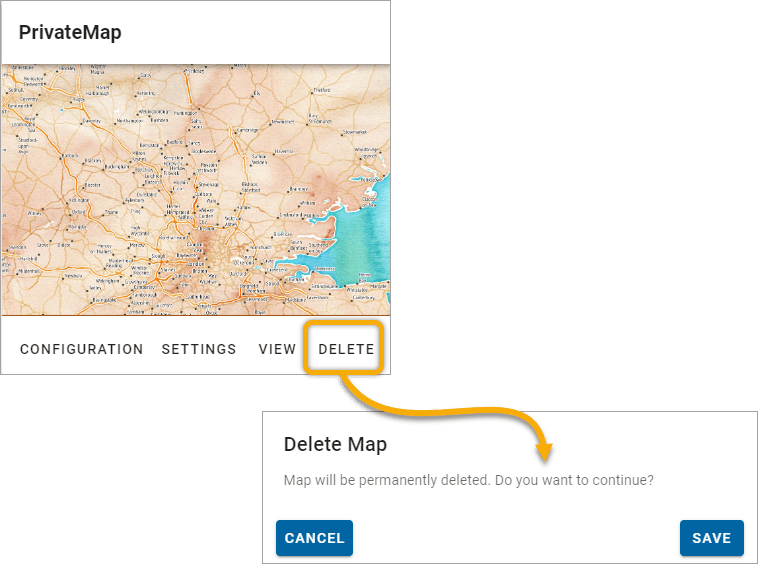
Most map applications allow you to remove saved locations by navigating to your "Saved Places" or "Favorites" menu. Select the specific location you wish to delete, then look for an edit or remove option, often represented by a trash can icon or a "Delete" button. Confirm your choice, and the location will no longer appear in your saved list, helping to declutter your personalized map experience.
What is the difference between deleting a map and clearing history?
Deleting a specific "map" often refers to removing a custom-created route, a downloaded offline area, or a single saved destination. Clearing history, however, typically involves erasing your search queries, navigation routes, and visited places over a period. While both enhance privacy, deleting a map targets individual items, whereas clearing history removes broader usage data. Understand the distinction to manage your digital footprint effectively.
Does deleting a map remove it for everyone?
No, deleting a map or saved location from your personal account typically only removes it from your specific device or account. It does not affect other users or the general availability of the map data itself. If you've created a shared map, deleting your personal access might not remove the map for collaborators unless you are the owner and choose to delete it entirely from shared access, which is a separate action.
How can I delete offline maps to free up storage?
To free up device storage, access the offline maps section within your navigation app's settings. Here, you'll find a list of downloaded map regions. Select the specific areas you no longer need and choose the "Delete" or "Remove" option. This action permanently removes the large map data files from your device, providing immediate storage relief, especially useful for mobile users with limited space.
Is it possible to recover a map I accidentally deleted?
Generally, once you delete a saved map, a specific route, or a custom location, it is permanently removed from your account and device. Most mapping services do not offer a direct "undo" or recovery feature for deleted items. Therefore, exercise caution when removing data. If it was a route, you might need to recreate it. For previously visited places, you might find them in your broader location history if that feature is enabled.
map delete, how to delete maps, remove saved locations, Google Maps delete history, Apple Maps privacy, erase map data, manage GPS routes, navigation app delete, delete offline maps, U.S. map removalAre you wondering how to delete a saved map from your navigation app or online service? Many users in the United States often look to clear old routes, remove outdated personal locations, or simply manage their digital map history for better privacy and organization. This comprehensive guide provides clear, step-by-step instructions on effectively deleting maps across popular platforms, ensuring your digital footprint remains clean and tailored to your current needs. Discover how to effortlessly remove unwanted map data, understand the implications of deletion, and maintain a clutter-free mapping experience. Whether it is a forgotten destination or a sensitive location you no longer wish to track, learn the quick methods to regain control over your mapping information. Our detailed advice empowers you to confidently manage your saved maps, enhancing both your user experience and digital security on various devices and applications.
- How do I delete my saved places in Google Maps? - To delete saved places in Google Maps, open the app, tap "Saved," then select the list (e.g., Favorites, Want to go). Tap the three dots next to an item and choose "Remove." For places saved directly without a list, access them via your timeline or search history, then long-press or find a "Remove" option to clear.
- Can I remove a custom map I created? - Yes, you can remove custom maps you've created. For platforms like Google My Maps, go to My Maps, locate the map you want to delete, and then select the option to remove or delete it. This action typically removes the map entirely from your account, making it inaccessible to you and any collaborators.
- What happens if I delete an offline map? - Deleting an offline map frees up storage space on your device. The map data for that specific region is removed, meaning you will no longer be able to navigate or view details for that area without an internet connection. This action does not impact online map functionality or other saved locations.
- How do I clear my navigation history on Apple Maps? - To clear your navigation history on Apple Maps, open the app, swipe up on the search card, and locate "Recents." Tap "See All," then tap "Clear" in the top left corner. You can choose to clear all recents or swipe left on individual entries to delete them selectively, enhancing your privacy.
- Does deleting map data improve phone performance? - Deleting large amounts of map data, particularly downloaded offline maps, can significantly free up storage space on your phone. This reduction in stored data can contribute to improved overall device performance, especially on older models or devices with limited storage, by making more resources available for other applications.
- Where can I find options to manage my map data privacy? - Most mapping applications integrate privacy management options within their settings. Look for sections labeled "Privacy," "Location History," or "Your data in Maps." Here, you can often pause location history, auto-delete older data, or manage individual saved places and searches, giving you control over your personal information.
Many individuals frequently ask, How do I delete a saved map? This question arises from a common need to manage digital information, whether for privacy, organization, or simply to clear clutter. Deleting saved maps, custom routes, or even entire location histories is a straightforward process across most popular navigation platforms. Understanding how to effectively perform a map delete operation allows users to maintain control over their personal data and streamline their mapping experience. This guide provides actionable steps for navigating the settings and options within your favorite mapping applications, ensuring you can confidently remove unwanted map data. Take charge of your digital footprint today by learning these essential map management techniques.
Understanding Why and How to Delete Maps
Why Clear Your Digital Map Data?
Clearing your digital map data serves multiple critical purposes, ranging from enhancing personal privacy to optimizing device performance. Many users in the United States prioritize keeping their location history private, preventing unintended tracking or data retention by service providers. Over time, saved routes, frequent destinations, and custom maps can accumulate, creating digital clutter that makes finding relevant information challenging. Proactively deleting this outdated or sensitive information ensures your mapping applications reflect only what is current and necessary for your daily navigation needs. This proactive approach strengthens your digital privacy posture, aligning your mapping habits with your desired level of data control.
Furthermore, managing your map data actively contributes to improved application performance and user experience. Excessively large caches of map data, particularly downloaded offline maps, can consume significant storage space on your device, potentially slowing down the application or even your entire phone. Regularly reviewing and deleting old or unused map data frees up valuable resources, allowing your navigation apps to run more smoothly and load faster. This optimization is particularly beneficial for users with limited device storage, ensuring their devices remain responsive and efficient. A clean map history also simplifies searching and navigating, presenting only the most relevant saved locations and routes.
Ultimately, taking control of your map data empowers you to tailor your navigation environment to your specific preferences and security requirements. Whether you are removing a sensitive location from your history or decluttering your saved places after a trip, the ability to delete maps ensures your digital footprint aligns with your current lifestyle. It is a fundamental aspect of digital hygiene that prevents unintended data exposure and ensures your mapping experience is always tailored, efficient, and private. By understanding the straightforward process of map deletion, you gain peace of mind and a more personalized navigation tool.
Common Methods for Map Deletion Across Platforms
The process for map deletion generally follows similar patterns across various mapping platforms, though specific button labels and menu placements may differ. Typically, users begin by opening their preferred navigation application and locating sections related to saved places, history, or downloaded content. Within these areas, individual items such as custom routes, starred locations, or specific search queries usually have options to be edited or removed. Look for icons like a trash can, an X, or a three-dot menu that reveals further options. Confirming the deletion is usually the final step, ensuring the item is permanently removed from your personal map data.
For widely used services like Google Maps and Apple Maps, the methods are user-friendly and designed for quick access. In Google Maps, you might navigate to the Saved tab, select a list, and then manage individual entries. To delete an entire route from your timeline, accessing your timeline history and manually removing specific days or entries is necessary. Apple Maps often requires swiping up on the search bar to reveal recent searches and then clearing them from there. For specific offline maps, both platforms feature a dedicated section within their settings where downloaded regions can be viewed and individually deleted to free up device storage. Understanding these platform-specific nuances helps ensure a thorough map deletion.
Beyond the major players, other navigation apps like Waze, Here WeGo, or specialized GPS units also incorporate options for managing stored map data. While the exact interface may vary, the core principle remains consistent: find the section where your personal data (saved places, routes, history) is stored, identify the item you wish to remove, and then execute the delete function. Always check the app's internal help guides or settings menu if you are unsure, as these resources often provide tailored instructions for data management. Regular maintenance of your map data ensures a streamlined and secure navigational experience across all your devices.
- Google Maps: Steps to remove places, routes, or timeline entries involve navigating to the 'Saved' tab, 'Your timeline', or 'Settings' to manage 'Map history' and 'Personal content'.
- Apple Maps: How to clear recent searches, favorites, and guides typically requires swiping up to 'Recents' or accessing 'Favorites' for individual removal options.
- Other Navigation Apps: General guidance for Waze, Here WeGo, etc., usually involves finding 'Saved places', 'History', or 'Offline maps' within the application's settings to initiate deletion.
Frequently Asked Questions About Map Deletion
How do I delete my entire Google Maps history?
To delete your entire Google Maps history, access your Google Account settings, navigate to 'Data & privacy', and then find 'Location History' or 'Web & App Activity'. Within these sections, you can manage or auto-delete your activity. Google offers options to delete activity from specific dates, or to automatically delete activity older than 3, 18, or 36 months, providing comprehensive control over your past navigation data and ensuring your privacy preferences are met.
What happens when I delete a downloaded offline map?
When you delete a downloaded offline map, the map data for that specific geographical region is permanently removed from your device. This action frees up valuable storage space on your phone or tablet. However, it also means you will no longer be able to navigate or view detailed information for that area without an active internet connection. Online map functionality and other saved locations or routes remain unaffected by the deletion of an offline map.
Can I recover a deleted map or saved location?
Generally, once you delete a saved map, a custom route, or a specific location from your mapping application, it is permanently removed and cannot be directly recovered through an
how to remove saved maps, delete Google Maps history, clear Apple Maps data, manage GPS routes, erase custom maps, privacy settings map apps, removing downloaded maps


How To Delete Election Explorer 2026 Map And Cancel Your Subscription Icon 2026 Google Maps Contribution Remove Maxresdefault World Year 2026 Illustration Of The With 1000 F 1754974276 H5JXMNIDJLMXHIUHES1JNVNB4PUHUQJQ 1000 1754974276 H5JXMNIDJLMXHIUHES1JNVNB4PUHUQJQ Global Showcasing Regions Number Tiles Representing 418812709 Removemap Updated 2026 What Changed Why It Matters Gmbmantra 1776841755399 2026 Changes Thumbnail 68A6B7EE 1776841755399 2026 68A6B7EE Supreme Court Clears California S New Congressional For 2026 IMG 4330 2026 A 3D 2026 On 1000 1754974386 6w8zqpze6b7h289yucq8loj6m4lrptt0 1000 1754974386 6w8zqpze6b7h289yucq8loj6m4lrptt0 AI Update 2026 Ask Immersive 3D Navigation 2026 Red 2026 Location Marker City Blue Pins Travel Planning Concept Labeled Stands Prominently Detailed 395803062 Last Frost Date Predicted 2026 Almanac 2026 2026 Over Europe 2026 Overlaid 1000 1760968695 BUPSAXUVE2TGU0MEYZIQ3MZNLMKBK8HF 1000 1760968695 BUPSAXUVE2TGU0MEYZIQ3MZNLMKBK8HF.


Senate 2026 Interactive Map Maxresdefault 2026 World Illustration A Stylized Video Overlaid With 1000 F 1755037871 9508ZDNMBWHZDTAKDVYQF9HDXHX2HRYV 1000 1755037871 9508ZDNMBWHZDTAKDVYQF9HDXHX2HRYV Europe 2026 Year 3D Render Of The 2026 1000 1754972348 MPLOVJH9CEBUVWDLHQWSGNNNO1Z5KSX4 1000 1754972348 MPLOVJH9CEBUVWDLHQWSGNNNO1Z5KSX4 Ultimate Risk 2026 SAFETURE Riskmap 2026 EN 2026 2026 Above Illustrating Global Future Concept Stock Overhead View Presents Number Bold Red Textured White Depicts Countries Composed Smaller Text 436993761 2026 House Prediction January 2025 Youtube 2026 Defacto Borders Photos Free Royalty Planning Wooden Blocks Showing Asia 419099971 United States 2026 Neon Lit 1000 1754973883 2cvpdjqalv2lwmbrmfumh1kkgni1pg58 1000 1754973883 2cvpdjqalv2lwmbrmfumh1kkgni1pg58 2026 QBAM Resource February 2026 By Yeastcartography On Deviantart 2026 DFGR2SO Pre 2026 DFGR2SO How To Rank Google Maps In 2026 Local SEO Checklist Fast 2026 Hero 2026 File 2026 Representatives Elections Retirements 3840PX 2026 Or Losses Renomination 3840PX 2026 Typography Continents And Oceans Ideal 1000 1162218985 NNSP9QY5VQDVDJLXGSYM4EOIVF4UVFJE 1000 1162218985 NNSP9QY5VQDVDJLXGSYM4EOIVF4UVFJE.


Antique Maps 2026 A5 Padded Diary Zmart Australia 2026 Wooden Blocks Displaying The Year 2026 Positioned On A World Map Stock Showcasing 418434704 Vintage For 2026 Destination Planning Illustration Great Travel Historical Projects Fantasy Themed Designs Navigation 421389673 Background Money Box With 2026 Motif Backgrounds Eng Pl 2026 459 2026 459 2026 Seniors End Of New Quest Begins Beeutifullyou LOGOTEMPLATE2 A1BF9DAB 51a3 4502 AC49 6518346DA53D LOGOTEMPLATE2 A1BF9DAB 51a3 4502 AC49 6518346DA53D Cup 2026 2026 How Each Country Voted To Delete Review Google 2026 Update Youtube Maxresdefault Political In 2026 By Justaportuguese Deviantart 2026 DLGE1LS Pre 2026 DLGE1LS USA 2026 Colorful Glowing 1000 F 1754973914 JDXAI0URHLHW4FPDLCHAZ3CWCVJOMBQT 1000 1754973914 JDXAI0URHLHW4FPDLCHAZ3CWCVJOMBQT 2026 Defacto Borders Photos Free Royalty Showing Placed Detailed Middle East Surrounding Regions Concept 417881181 2026 And 3036 Geoportal Geographythroughmaps Geography OAR2.